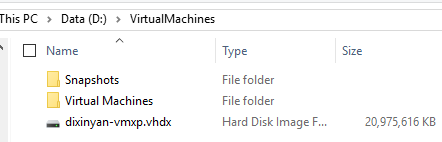
Virtual hard disk image files (VHD and VHDX files) grow bigger during the usage. For instance, this is a 20G virtual disk file for a Windows XP virtual machine:
But the actual storage usage is only 5.3GB (19.9GB total space – 14.6GB free space):

Hyper-v Manager provides a button to compact the virtual hard drive:
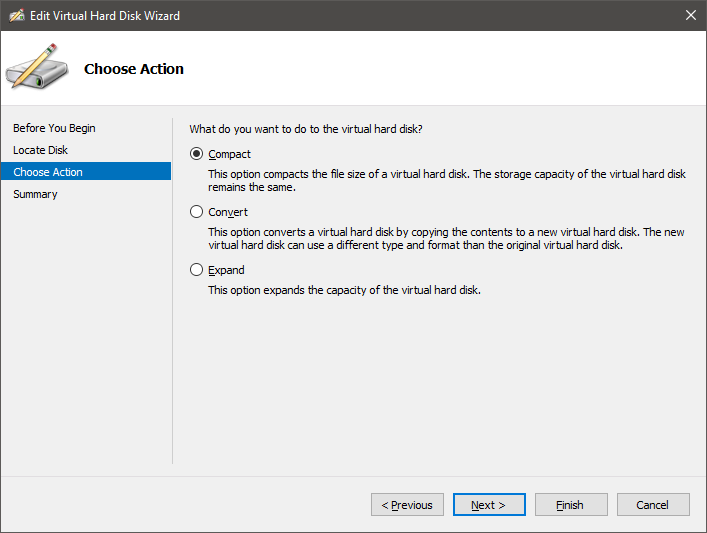
However, it never worked directly. After spending time to try around, the following are the steps truly workable.
Delete files in VHD/VHDX
First of all, delete whatever not needed in the virtual machine. For example, in this Windows XP virtual machine, these entries can be cleared:
- C:\Documents and Settings\Administrator\Local Settings\Temp\*
- C:\Documents and Settings\Administrator\Local Settings\Temporary Internet Files\*
- C:\WINDOWS\$*
- C:\WINDOWS\SoftwareDistribution\Download\*
- C:\WINDOWS\System32\dllcache\*
- C:\WINDOWS\Temp\*
- etc.
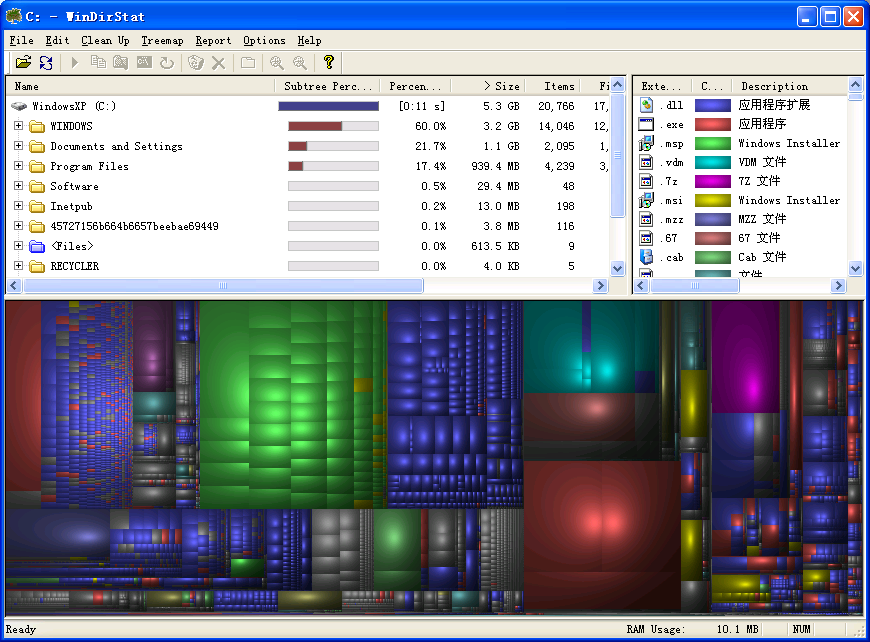
Also, WinDirStat is very helpful to identify the sizes of directories/files:
Defrag the partitions
After cleaning up inside the VHD/VHDX, the next step is defragment. The built in defragment tool in Windows is not powerful enough for the purpose of shrinking. PerfectDisk (30 days free trail) could be a nice option:
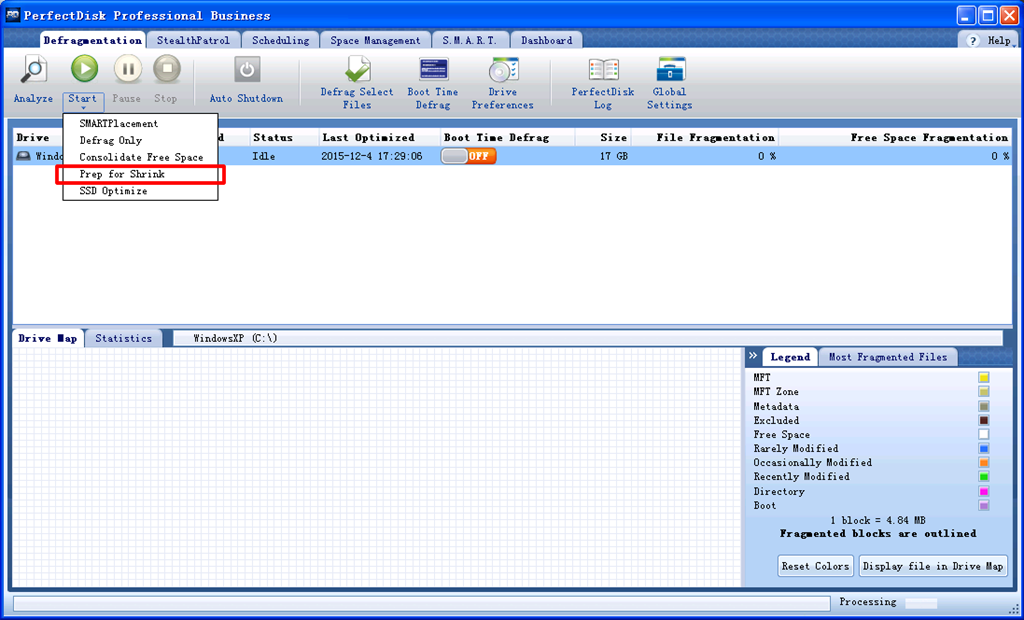
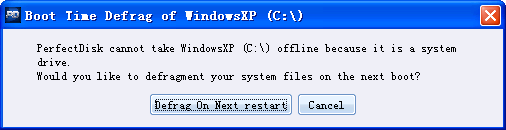
Start defragment by clicking “Prep for Shrink”. When it is done, click “Boot Time Defrag”:
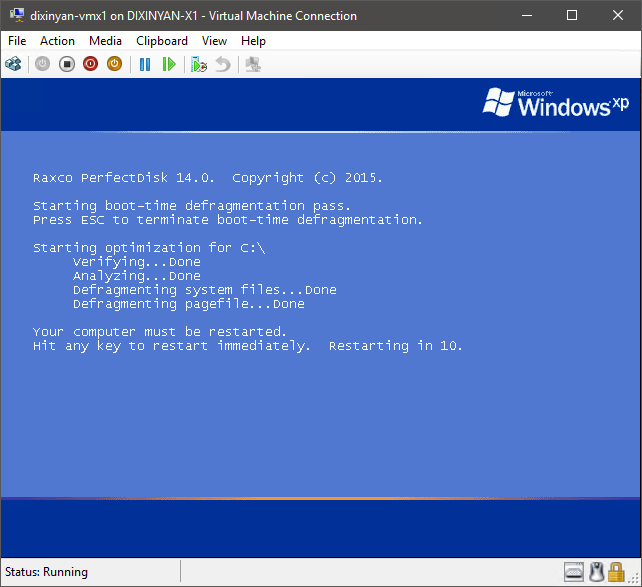
Then virtual machine will be restarted, system files and page files will be defragged:
Shrink the partitions
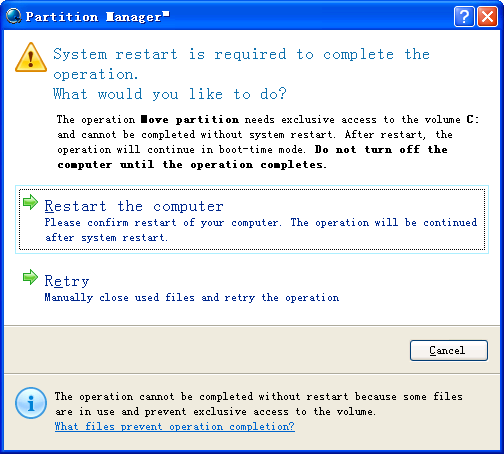
In Windows XP virtual machine, the built in Disk Management Tool cannot shrink the partition. Paragon Partition Manager (free edition) can do that:
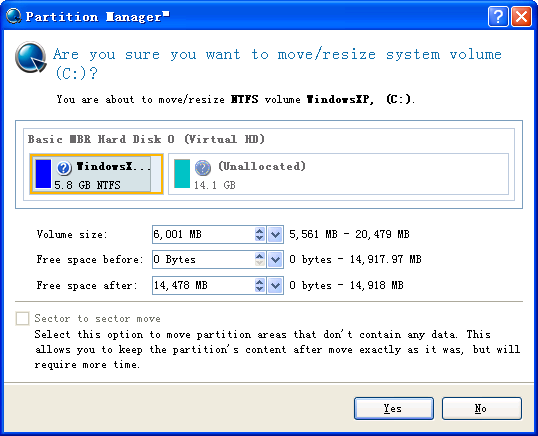
Reboot is required again:
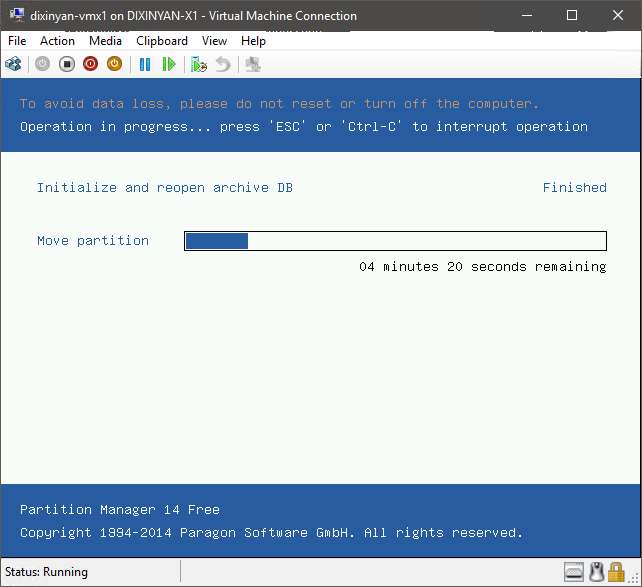
After reboot, it will be done:
Other tools, like MiniTool Partition Manager, Disk Genius (Chinese language), etc., should also work.
Shrink the VHD/VHDX files
This is the most tricky part. There are several options:
- Use built-in Hyper-v Manager to shrink VHD/VHDX files of a virtual machine.
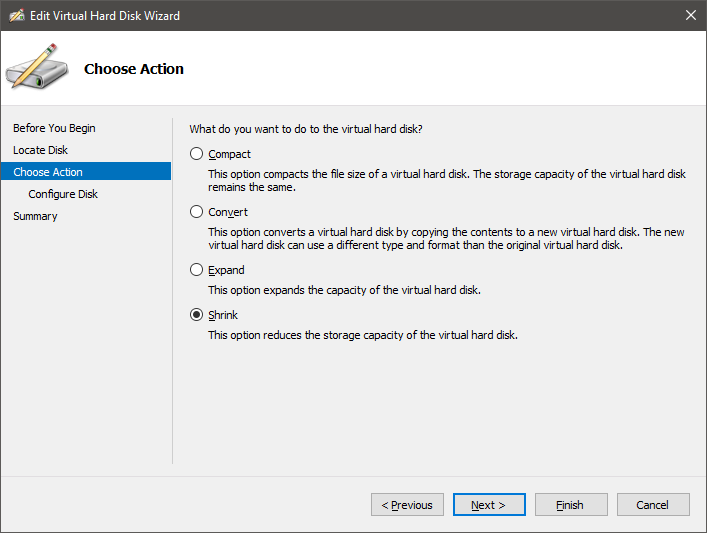
- Use VHD Resizer to change the size. It only works for VHD, not VHDX.
- Use PowerShell command to shrink VHD/VHDX files:
Resize-VHD –Path .\dixinyan-vmxp.vhdx –ToMinimumSize
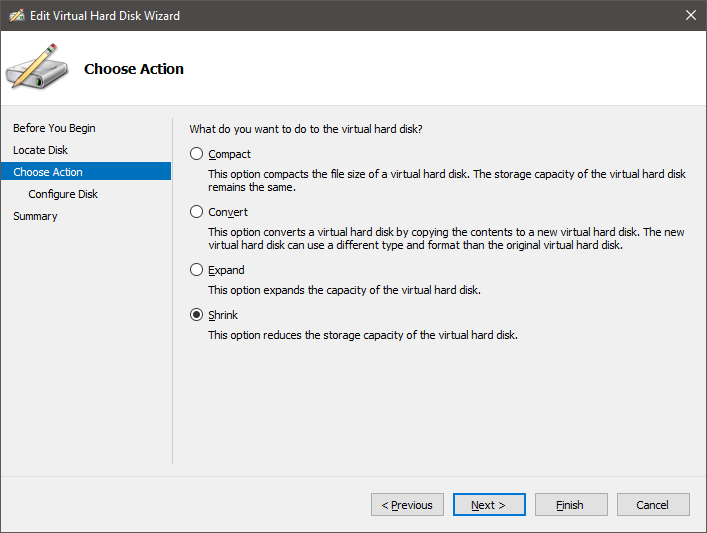
Unfortunately, none of these can work for above virtual hard disk of this Windows XP virtual machine. After trying things around, the following approach works:
- When shrinking a VHDX, Convert it to VHD then convert it back to VHDX.
- When shrinking a VHD, convert it to VHDX then convert it back to VHD.
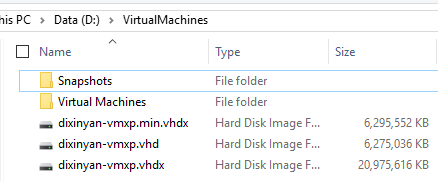
In PowerShell:
Convert-VHD -Path .\dixinyan-vmxp.vhdx -DestinationPath .\dixinyan-vmxp.vhdConvert-VHD -Path .\dixinyan-vmxp.vhd -DestinationPath .\dixinyan-vmxp.min.vhdxFinally, The VHDX is shrunk from 20GB to 6GB: